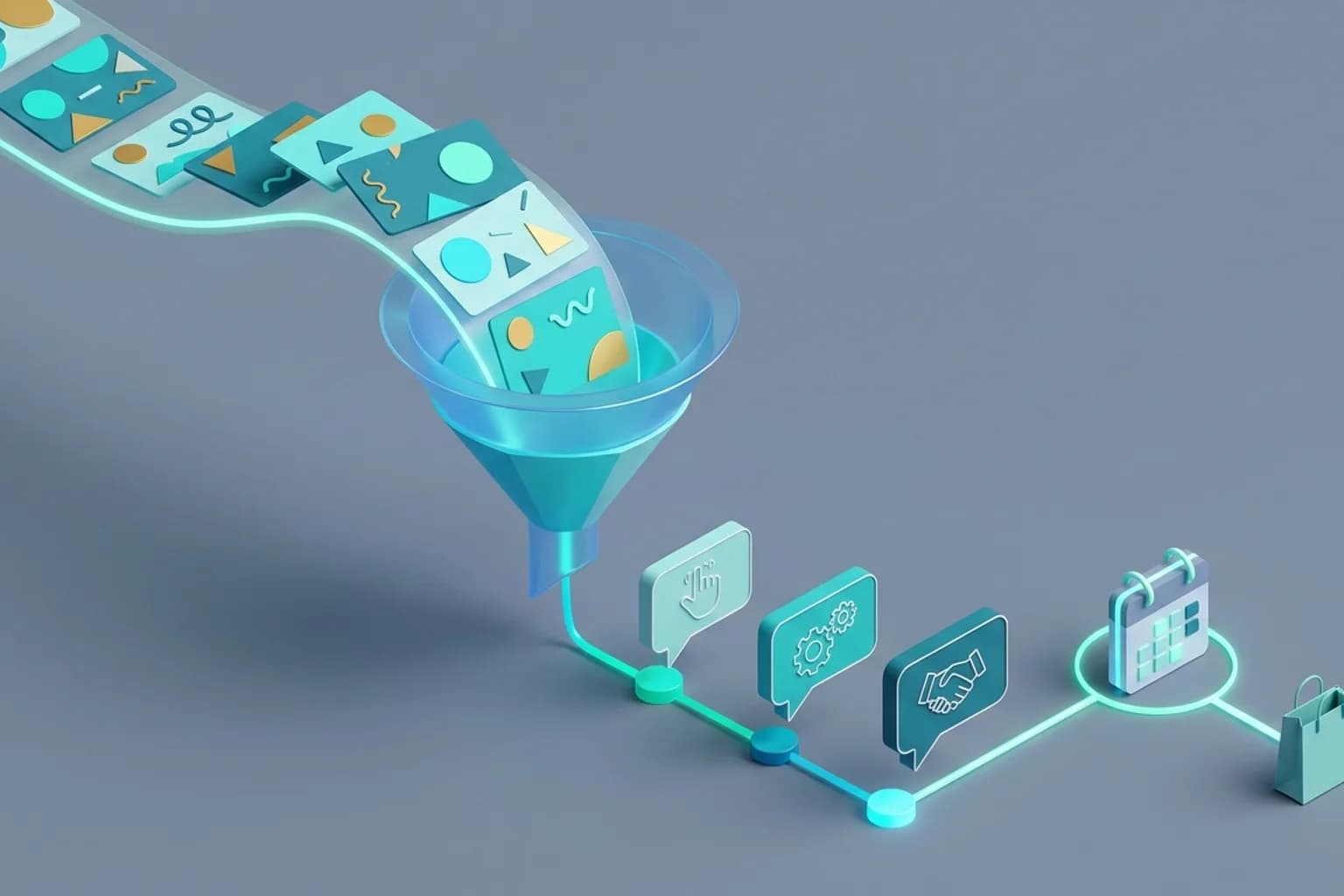
As landing-page forms convert less and less, Click-to-WhatsApp, Instagram, and Messenger ads that open a chat straight from the ad have become a major acquisition channel for both e-commerce brands and service businesses. A prospect sees the ad, taps once to open the conversation, and writes "Can I get more information about this offer?"
Ad spend pays off only when the first minutes after the click are handled well. Ad traffic often peaks in the evening and at weekends; when the reply comes the next morning, the prospect has either chosen another brand or forgotten what the ad was about. The ad conversation settings in Yanitly's WhatsApp automation platform recognize messages that come from ads and handle them according to the mode you choose.
Success with ad conversations is not about giving every person who clicks the same canned answer; it is about knowing they came from an ad and moving the conversation to the next step with a few short, relevant questions.
Why Ad-Originated Chats Need Different Handling
A customer who writes to a business on their own usually knows what they want: "Where is my order?" or "What time do you close?" Someone who arrives from an ad is still exploring and trying to work out whether the offer fits their needs. When ad traffic meets an ordinary knowledge base bot, three problems appear:
- Lost context: The prospect asks "How much is it?" and gets a cold "Which product do you mean?" because the ad they came from is ignored.
- Double greetings: Meta's automatic welcome message goes out and the assistant sends a second "Hello" right under it, which makes the opening feel robotic.
- Early price lists: A raw price list is sent before the prospect's needs are understood, and high-value service conversations end immediately.
How Ad Conversations Are Recognized
Yanitly reads the ad referral information that Meta sends with messages on WhatsApp, Instagram, and Messenger. If a message starts from an ad click or from one of your ice-breaker questions, the conversation is marked as an ad conversation. The mark stays on the conversation for the free messaging window that follows the latest ad entry, so the prospect's next messages are handled under the same rules.
No Collision with Meta's Automatic Greeting
Many ad campaigns use an automatic welcome message that Meta sends as soon as the prospect opens the chat. When that reply arrives within a few seconds, Yanitly recognizes it and the assistant does not write a second greeting on top of it. Your scenario opening is sent once that short window has passed, so the prospect sees a single, consistent opening.
Four Operating Modes
For each channel you choose how ad conversations are handled:
- 1.Follow the channel setting: Ad conversations are handled by the channel's normal AI mode.
- 2.Scenario: The assistant opens with the scenario you approved, and the conversation then continues with the channel's normal flow.
- 3.Draft: The assistant prepares a reply but does not send it; the draft lands with your team and an awaiting-reply notification goes out.
- 4.Human: The assistant does not write; the conversation waits for your team, and the team is notified.
If the channel's own AI mode is off or set to draft, the ad layer does not send automatic messages either. In other words, the ad setting can never override your channel setting.
How to Build a Scenario
Scenario mode does not leave the conversation to improvisation. It consists of a short opening that you define and approve in the channel settings.
A Greeting and 1 to 3 Questions
Long questionnaires lose people on mobile messaging, so a scenario is limited to at most three natural questions. For example:
- E-commerce and fashion: "Which color and size range are you looking for?"
- Clinics and beauty: "Have you had this treatment before, and which days suit you?"
- Sports and education: "For the trial lesson, do weekday evenings or weekends work better?"
An Approved Price Line
You can link a service's price line to the scenario. That line is shown only if the service's price visibility setting allows a figure. If the service is marked "after assessment" or "hidden", no figure appears in the scenario, and the assistant never adds an internal price or deposit amount on its own.
A Closing Call to Action
You end the scenario with a short closing sentence of your own, such as "Tell me a time that suits you and I will check it right away" or "Once you choose a size and color, I can show you the product." The sentence is your text; the assistant does not add discounts or promises to it.
How the Conversation Continues After the Scenario
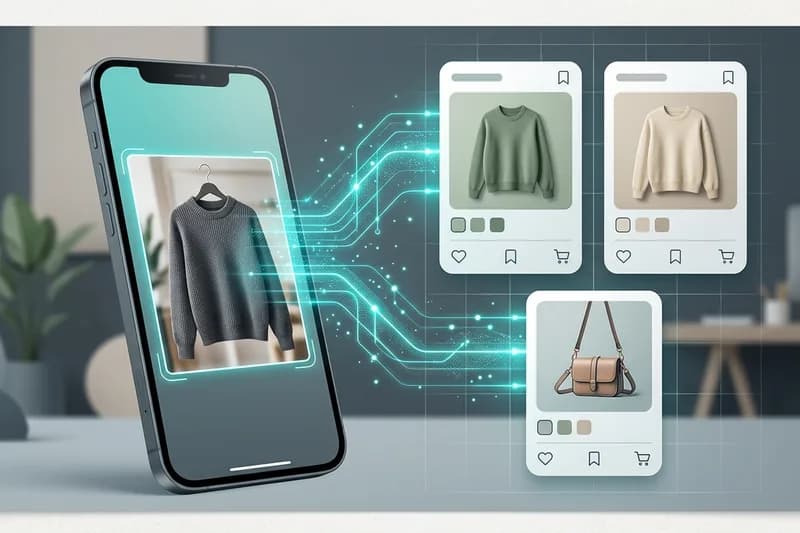
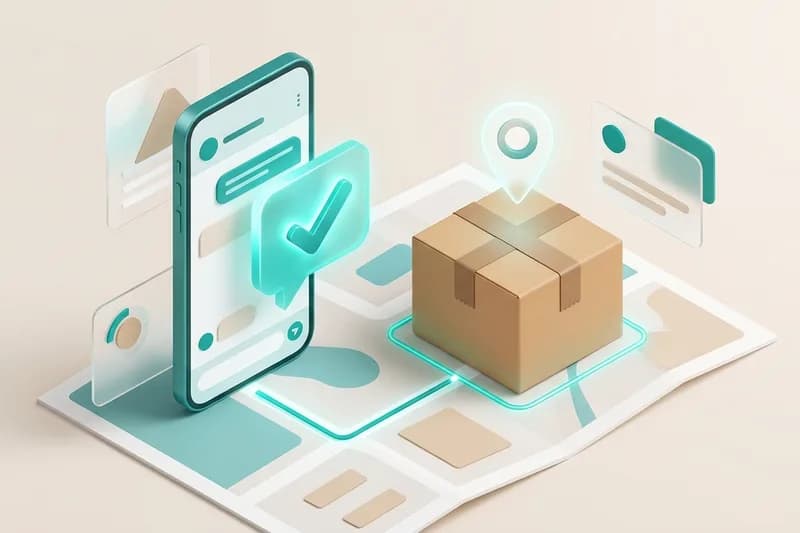
After the opening, the conversation continues with the channel's normal assistant flow. In e-commerce, when the prospect asks about a product, the visual product search and color photo step comes in, and at checkout the cash-on-delivery order and confirmation flow takes over. For service businesses, the assistant offers available times from the calendar and books the appointment with the prospect's confirmation.
Example Scenarios by Industry
A scenario works best when the first message continues the promise of the ad with the right question. A few example flows:
Apparel brand: A shopper taps a new-season trench coat ad and writes "Can I get some information?" The scenario opens with a short greeting and asks "Which color and size range are you looking for?" When the shopper answers "Beige, 38", the assistant reads stock from the catalog, sends the primary photo of the beige variant, and, if the shopper wants, prepares a cash-on-delivery order summary.
Beauty center: For a prospect who taps a skincare campaign, the scenario asks whether they have had the treatment before and which days suit them. If the service's price visibility is set to "starting from", the scenario's price line carries that text; the assistant then offers available times from the calendar.
Dental clinic: In an implant consultation ad, the price is usually confirmed after an examination. In that case you add no price line; the scenario only asks which days suit the consultation and takes the appointment request.
In each example the friction between the ad and the chat drops, but the order or appointment is still created only with the customer's explicit confirmation.
How Your Team Stays Informed in Draft and Human Modes
In draft or human mode the assistant does not write to the prospect, but your team is not left in the dark. When an ad message is waiting for a reply, team members with inbox access receive a notification, and the conversation list shows why the assistant did not answer. In draft mode, the prepared reply waits as a suggestion that an agent can edit and send in one tap.
Per-ad conversion reporting is not part of this flow. Keep tracking which ad sets turn into sales in Meta Ads Manager; on the Yanitly side, conversations, orders, and appointments appear in their usual screens.
Setting Up an Ad Scenario Step by Step
To bring order to your ad conversations, follow this sequence:
- 1.In the channel settings, choose the mode for ad conversations: follow the channel setting, scenario, draft, or human.
- 2.If you choose scenario, write the greeting, up to three questions, the service linked to the optional price line, and the closing sentence, then approve it.
- 3.Try the scenario in the AI Simulator and watch drafts and the inbox during the first days, combining the flow with our WhatsApp chatbot solution and e-commerce live support automation.