Outbound calls for quote follow-ups, appointment confirmations, or payment reminders are as central to customer communication as answering inbound calls. Yet in many businesses, sales reps, clinic coordinators, and support specialists still call customers from their own mobile phones or from separate desk lines.
Calls from personal numbers leave gaps in the company's memory: nobody records what was promised to whom, when the customer calls back the call goes to the employee's phone rather than the company, and the WhatsApp conversation and the phone call stay disconnected. Yanitly's Web Call Desk and mobile calling features let your team call customers from your business number and record every call on the customer record. For inbound calls, our AI call center does the work.
The Risks of Calling Customers from Personal Phones
When outbound calls happen outside a central system, three problems appear:
- Lost trust: Customers hesitate to answer a call from an unknown mobile number instead of the company line they recognize.
- Fragmented history: A customer may have asked about pricing on WhatsApp and then received a call. If the call never reaches the customer record, the next teammate asks the same questions all over again.
- Untracked outcomes: When the result of a call is not recorded in a standard way, managers cannot see who needs a callback.
How Return Calls Get Lost on Personal Lines
When an employee calls from their own phone, a customer who was in a meeting calls back half an hour later, but that call goes to the employee's personal phone rather than the company. If the employee is off or on another call, the customer gets no answer. When the call comes from the company number, the returning customer reaches the company's greeting flow and the voice AI assistant directly.
Outbound calling should not be a side tool but a natural part of the customer history; an agent reading the customer's messages should be able to start the call from the same company number without switching screens.
Calling Modes
Not every work setting has the same internet connection. A coordinator in the office and a sales rep on the road have different needs, so Yanitly offers more than one calling mode.
Bridge Mode: Your Phone Rings First
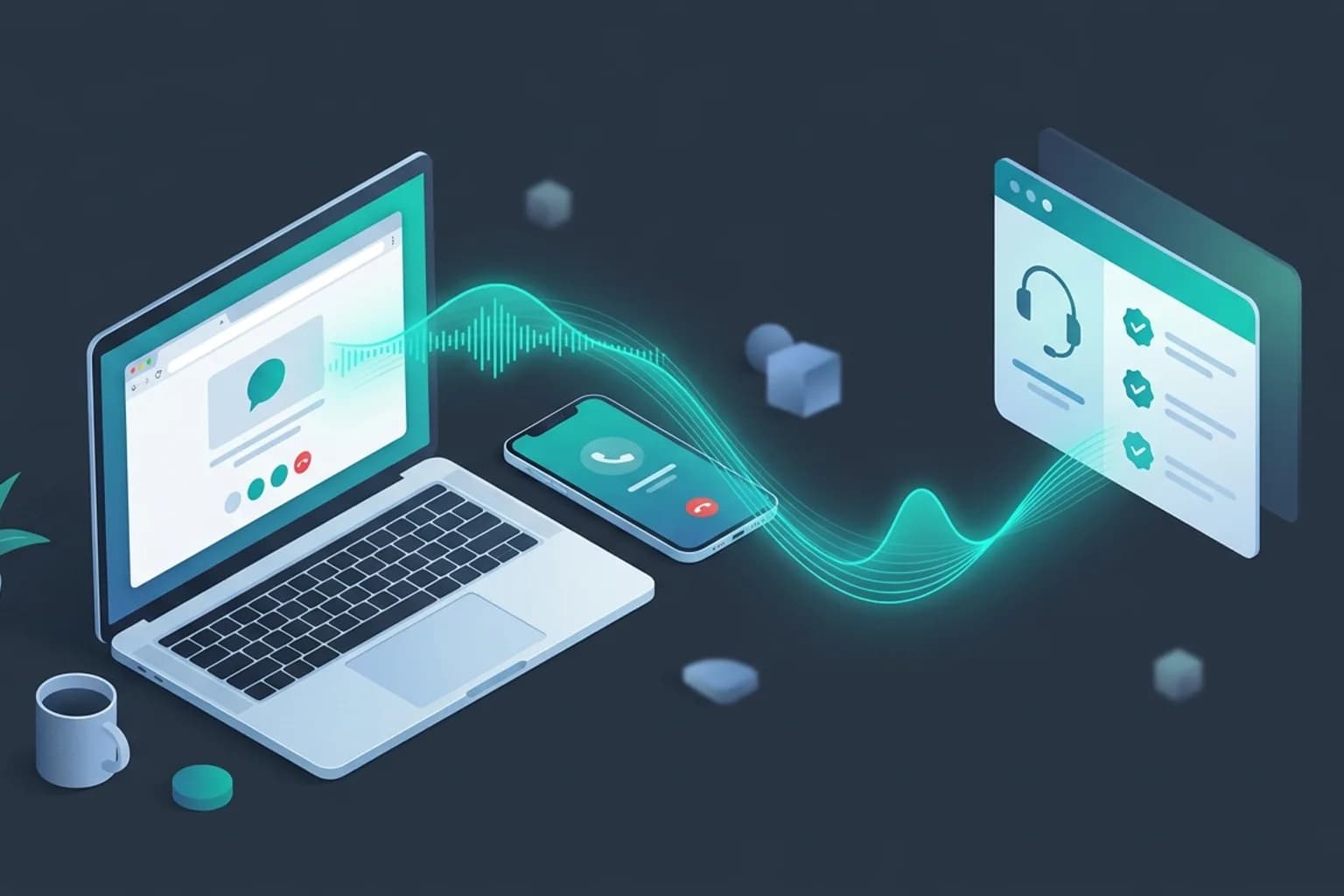
In bridge mode you do not need to install anything. When you start a call, your verified mobile phone rings first. When you answer and press the key, the system calls the customer from your business number and joins the two calls. The customer sees your business number, not your personal one. Because this mode runs over the regular phone network, it works even in the field with a weak internet connection and has the widest coverage.
Browser and Mobile App Modes
When it is enabled for your account, team members can talk directly in the browser with a headset and microphone. In the Yanitly mobile app, the phone button in the middle opens a keypad, recent calls, and contacts, and calls can be placed from the app with the business number. Which mode is available to which user depends on your account, the platform, and permissions; bridge mode always remains as a second option on every platform.
Who Can Call? Permissions and Visibility
The "Call" button is shown only to users with calling permission. In the web panel, calls always start from a customer record, so every call is linked to the right person. In the mobile app, dialing an arbitrary number from the keypad is a separate permission that must be granted explicitly; not every user has it by default.
Before the call starts, a short confirmation screen shows who will be called and which mode will be used. This step reduces the risk of calling the wrong person or calling out from the wrong line. On iPhone, calls placed inside the mobile app work with the phone's own call screen, so the call continues even if you switch to another app. If in-app calling is not available on a device, you can use bridge mode with the same company number, and the customer still sees your business number.
Recording the Call Outcome
The real value of an outbound call lies in what gets recorded after the phone is hung up. When the call ends, the agent chooses its outcome:
- 1.Resolved: The customer's request was handled on the call.
- 2.Callback needed: The customer wants to be called later or the topic is still open.
- 3.Not reached: The customer could not be reached.
- 4.Wrong number: The number belonged to someone else.
- 5.Do not call: The customer said they do not want to be called again.
- 6.Other: Situations outside these options.
The call is added to the customer's conversation history, with its outcome and a short note, as a line only your team can see. No audio recording or automatic summary is created for outbound calls, which is why the agent's note matters.
The Do-Not-Call List
When "Do not call" is selected, the system asks for an extra confirmation. Once confirmed, no new outbound call can be started for that number. The rule is tied to the number rather than the person, so it applies even if the same number appears on another contact card.
Bridging Messaging and Phone Calls
Because the call line appears in the same history as the customer's messages, moving between channels becomes easier. For example, when a customer asks about pricing on WhatsApp in the afternoon and is called by an agent later in the day, both interactions appear one under the other on the same screen. When the customer calls your company number the next morning, the assistant or the teammate who answers knows the result of the previous call.
Visibility for Managers
The value of outbound calling shows not only in individual calls but in the overall picture. Authorized managers see the team's calls, their outcomes, and the calling minutes used in the outbound call report. Each user can list their own recent calls and call a suitable contact again with one tap.
How to Use the Report
The spread of outcomes in the report shows where the team is struggling:
- If "Not reached" results increase: Try moving call times to when customers are easier to reach.
- If "Callback needed" records pile up: Turn them into a daily follow-up list and assign an owner to each.
- If "Wrong number" results grow: Review which channel and method is used to collect phone numbers on contact cards.
Outbound calling then stops being a habit that depends on personal memory and becomes a measurable team process. A new team member can also learn quickly where things were left with a customer by looking at previous call outcomes.
Setup Steps for Sales and Operations Teams
To move your team from personal phones to the company line, follow these steps:
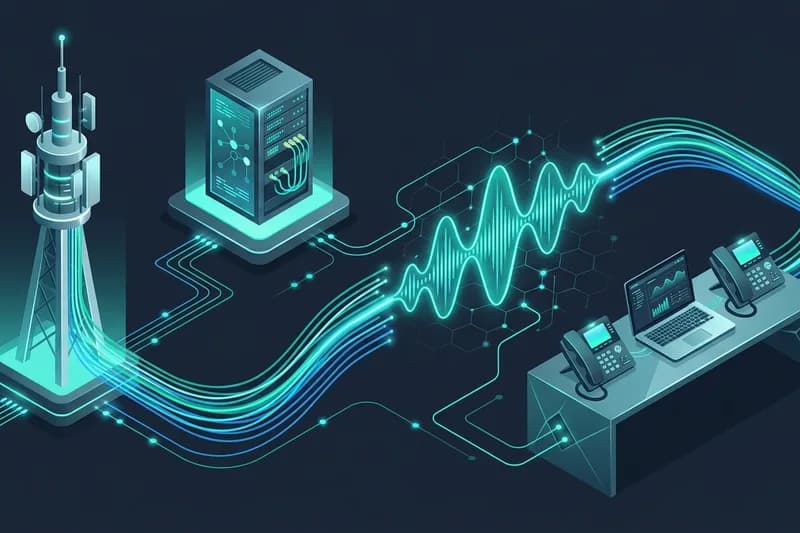
- 1.Set up your business number: Connect your line as described in our guide to setting up an AI phone assistant with Netgsm and Verimor SIP trunks and check outbound calling permission.
- 2.Set permissions and phones: Grant calling permission to the team members who will call, and verify the mobile phones of those who will use bridge mode.
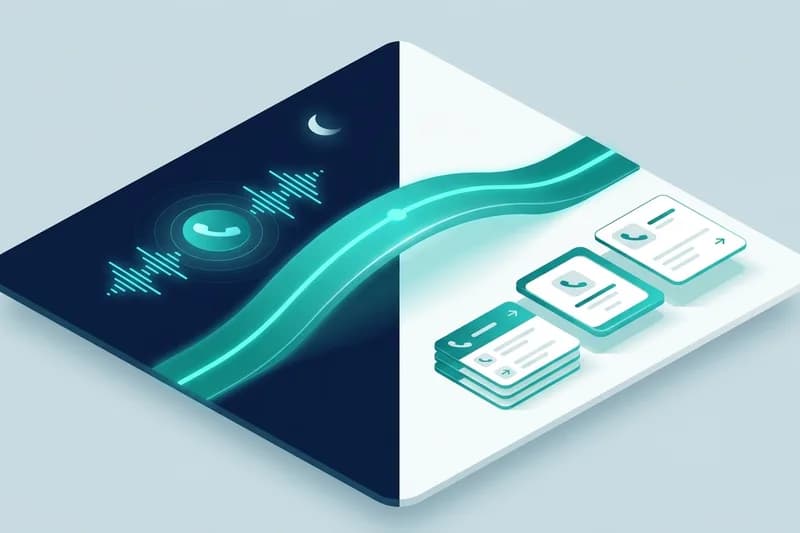
- 3.Connect after-hours callbacks: Route overnight and weekend requests to the morning team with the after-hours routing and callback flow.
- 4.Review outcomes: Go through call outcomes and "Callback needed" records in your daily meetings.